
 U.S. Department of Health and Human Services
Food and Drug Administration
The FAERS public dashboard for cosmetic products is a user-friendly and interactive web-based tool that was created to give the public the ability to query the FDA FAERS database and improve transparency. The data presented in the FAERS public dashboard has several key limitations. The existence of adverse event reports for a cosmetic product in FAERS does not mean that the cosmetic product caused the adverse event. Importantly, the FAERS data is not an indicator of the safety profile of the cosmetic product. For more information, please refer to the question What points should I consider while viewing the dashboard content?
Frequently Asked Questions (FAQs)
Expand all | Collapse all
The FDA Adverse Event Reporting System (FAERS) is a database that contains adverse event reports, medication error reports, and product quality complaints resulting in adverse events that were submitted to the FDA. The informatic structure of the FAERS database adheres to the international safety reporting guidance issued by the International Conference on Harmonization (ICH E2B).Adverse events, medication errors and product quality complaints are coded using terms in the Medical Dictionary for Regulatory Activities (MedDRA) terminology.
+ How does the FDA use the information in FAERS for cosmetic products?
FAERS is a useful tool for the FDA to help identify potential safety concerns that might be related to a cosmetic product. The adverse event reports for cosmetic products in FAERS are evaluated by public health/clinical reviewers in the Office of Cosmetics and Colors (OCAC) in the Office of the Chief Scientist (OCS).
If a potential safety concern is identified in FAERS, further evaluation is performed. Based on an evaluation, FDA may take action to protect the public health, such as communicating new safety information to the public, or, in rare cases, removing a product from the market.
+ Who sends cosmetics reports to FAERS?
FDA receives voluntary cosmetic product reports directly from consumers, health care providers, industry, and others (such as salon professionals or cosmetologists). Consumers and others may also report to the products’ responsible persons whose contact information is on the product label. A responsible person receiving a serious adverse event report is required to send the report to FDA under Section 605 of the Federal Food, Drug, and Cosmetic Act (FD&C Act).
+ How can I report an adverse event related to a cosmetic product to the FDA?
The How to Report a Cosmetic Product Related Complaint website provides information about voluntary and mandatory reporting of adverse events. Additionally, the MedWatch website provides information about voluntary reporting.
+ Can reporters submit adverse events electronically?
Yes, the How to Report a Cosmetic Product Related Complaint website contains information about FAERS electronic submissions and instructions on how to electronically submit adverse event reports, with and without attachments.
+ Does FAERS data have limitations?
Yes, FAERS data does have limitations. First, there is no certainty that the reported event was due to the product. FDA does not require that a causal relationship between a product and event be proven, and reports do not always contain enough detail to properly evaluate an event. Reports submitted to FDA vary in the quality and reliability of the information provided. Some reports to FDA do not necessarily include all relevant data, such as whether an individual also experienced other medical conditions or used other products or medications at the same time. Reports may not include accurate or complete contact information for FDA to seek further information about the event, or complainants may choose not to participate in a follow-up investigation. Furthermore, FDA does not receive reports for every adverse event that occurs with a product. Many factors can influence whether an event will be reported, such as the time a product has been marketed and publicity about an event. There are also duplicate reports where the same report was submitted by a consumer and by the responsible person. Therefore, FAERS data cannot be used to calculate the incidence of an adverse event in the U.S. population. For more information, please refer to the question What points should I consider while viewing the dashboard content?
+ Is FAERS data for cosmetic products available to the public?
Yes, FAERS data for cosmetic products is available to the public in the following ways:
· FAERS Public Dashboard for Cosmetic Products: a highly interactive web-based tool that allows for the querying of FAERS data for cosmetic products in a user-friendly and downloadable platform (e.g., Excel). The FAERS dataset does not contain Personally Identifiable Information (PII) and is HIPAA compliant.
· OpenFDA: is an application program interface (API) alternative source to download various FDA data sets including cosmetic products
· Individual case safety reports from the FAERS database can also be obtained by sending a Freedom of Information (FOI) request to FDA.
+ How do I find or confirm my report is in FAERS?
To confirm that your report is in FAERS, please send a Freedom of Information (FOI) request to FDA.
+ What are the benefits of the FAERS Public Dashboard for Cosmetic Products?
The public dashboard makes the data easier to query and produces user-friendly information and charts. For example, users can view a summary of cosmetic product adverse event reports received from 2001 to the present or for a specific timeframe. In addition, users can search for products or specific types of adverse events within a specific timeframe.
+ Is the FAERS public dashboard accessible on an Android™ or iPhone®?
Yes, but the user interface layout may not be very user friendly. FDA will continue to work on the dashboard to make the user interface Android and iPhone friendly.
+ Can I download my search results from the dashboard?
Yes, you will be able to export a limited set of search data to an Excel® spreadsheet and then download it.
+ How are versions of a case in FAERS handled?
Each unique submission of a case received is assigned a version number (for example, Case #1234567, version 1). The initial version received will be version 1. If a follow up is received on a previously submitted case, then that version of the case will be version 2, and so on. The latest version of a case represents the most current information about that case.
+ What points should I consider while viewing the dashboard content?
When you view the website output of reported adverse events for a cosmetic product, it is important to consider the following points:
- Data Quality:There may be instances of duplicative reports, and some reports may not contain all the necessary information. Duplicate reporting occurs when the same report is submitted by multiple entities, including the consumer, other persons, and/or responsible person.
- Existence of a report does not establish causation: : For any given report, there is no certainty that a suspected cosmetic product caused the adverse event. While consumers and healthcare professionals are encouraged to report adverse events, the event may have been caused by some other product being used concurrently, or due to other reasons, including underlying medical conditions. The information in these reports reflects only the reporter's observations and opinions.
- Information in reports has not been verified: Submission of a report does not mean that the information included in it has been medically confirmed nor is it necessarily a conclusion from the reporter that the cosmetic product caused or contributed to the event.
- Impact of data updates on queries:FAERS reports are updated daily (near real-time). Accordingly, the information presented is current as of the date of access. Due to the dynamic nature of this database, subsequent queries may yield different results. For example, the total number of reports and the final version of a given report may vary. Thus, information obtained from this database represents only those reports available as of the specific date of access and should not be construed as representing the complete or final state of all reports at any other time.
- Rates of occurrence cannot be established with reports: The number of adverse reports in FAERS should not be used to determine the likelihood of an adverse event occurring. The FDA does not receive reports for every adverse event that occurs with a cosmetic product. Many factors can influence whether an event will be reported, such as the time a product has been marketed and publicity about that event. Therefore, information in these reports cannot be used to estimate the incidence (occurrence rates) of the adverse events reported.
- Adverse event reports listed in FAERS Cosmetic Dashboard:Per Section 604 of the FD&C Act, an adverse event is defined as any health-related event associated with the use of a cosmetic product that is adverse. A serious adverse event is defined as an adverse event that (A) results in: death; a life-threatening experience; inpatient hospitalization; a persistent or significant disability or incapacity; a congenital anomaly or birth defect; an infection; or significant disfigurement other than as intended, under conditions of use that are customary or usual; or (B) requires, based on reasonable medical judgement, a medical or surgical intervention to prevent an outcome described in (A). Documenting one or more of these adverse events in a report does not necessarily mean that the suspect product(s) named in the report was the cause of the adverse events. Per Section 605 of the FD&C Act, the responsible person must submit to FDA any reports received of serious adverse events associated with the use, in the United States, of a cosmetic product manufactured, packed, or distributed by such person.
Data Questions
+ Does the FAERS Dashboard have all the adverse events that have occurred with a cosmetic product?
No. The FAERS Dashboard only contains adverse events reported to the FDA. Only serious adverse events that have been reported to the responsible person are required to be reported to the FDA. Reporting of non-serious adverse events for cosmetic products is voluntary for responsible persons. Furthermore, there are no requirements for healthcare professionals or consumers to report adverse events to either the FDA or the responsible person. Therefore, the FAERS database contains only a fraction of the adverse events that may occur with a cosmetic product. There are a variety of factors that can affect reporting to both the FDA and the responsible person, including whether a particular adverse event is known for a cosmetic product, how long a cosmetic product has been on the market and whether there have been recent reports in the news about possible adverse events for a given cosmetic product.
+ Which internet browsers can I use to access the dashboard?
You can use any of the following internet browsers to access and view the dashboard:
Microsoft Internet Explorer 11, Microsoft Edge, Google Chrome, Mozilla Firefox, Apple Safari.
+ What is the recommended screen resolution for viewing the dashboard?
For the best dashboard viewing experience, the recommended screen resolution for your desktop or laptop is 1920x1080.
+ How do I navigate through different sheets of the dashboard?
You may use the navigation bar on the top of the dashboard to navigate through different sheets. Depending on the sheet you are currently viewing, you may see different options to select in the navigation bar.
When viewing the “Home” or “Search Cosmetics” sheets, you will see the options shown below in the navigation bar.

When viewing any other page in the dashboard after searching for a product, you will see the options shown below.

+ How can I view report statistics for quarters and months of a specific year?
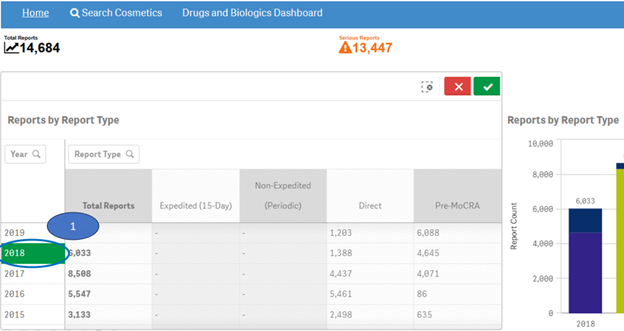
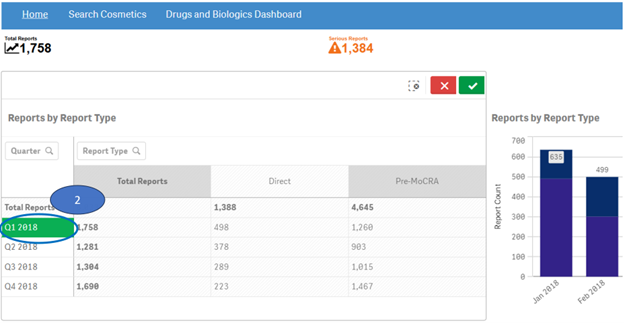
The “Home” sheet displays report statistics for all the years by default. But you may view report statistics for quarters and months of any specific year. You can view statistics for quarters of only one year at time. You can view statistics for months of only one quarter at a time.
1. Click on any year in the table or chart and confirm selection to view statistics for the year by quarters.
2. Then select any quarter by clicking on it to view statistics for the months of the selected quarter.
3. Clear the selected quarter to go back to view statistics by quarters.
4. Clear the year selection to go back to view statistics for all year.
Note: If a year has just one quarter of data, selecting the year will directly display months for the year without displaying quarters.


+ How do I search for cases for a cosmetic product or products?
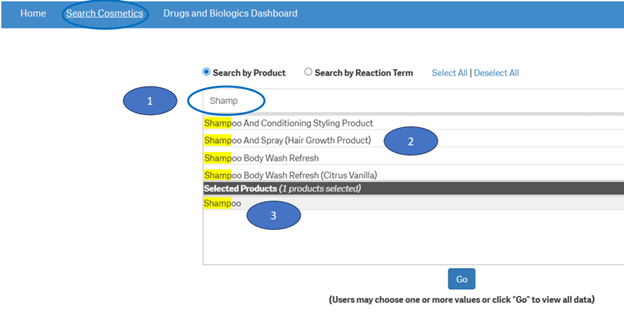
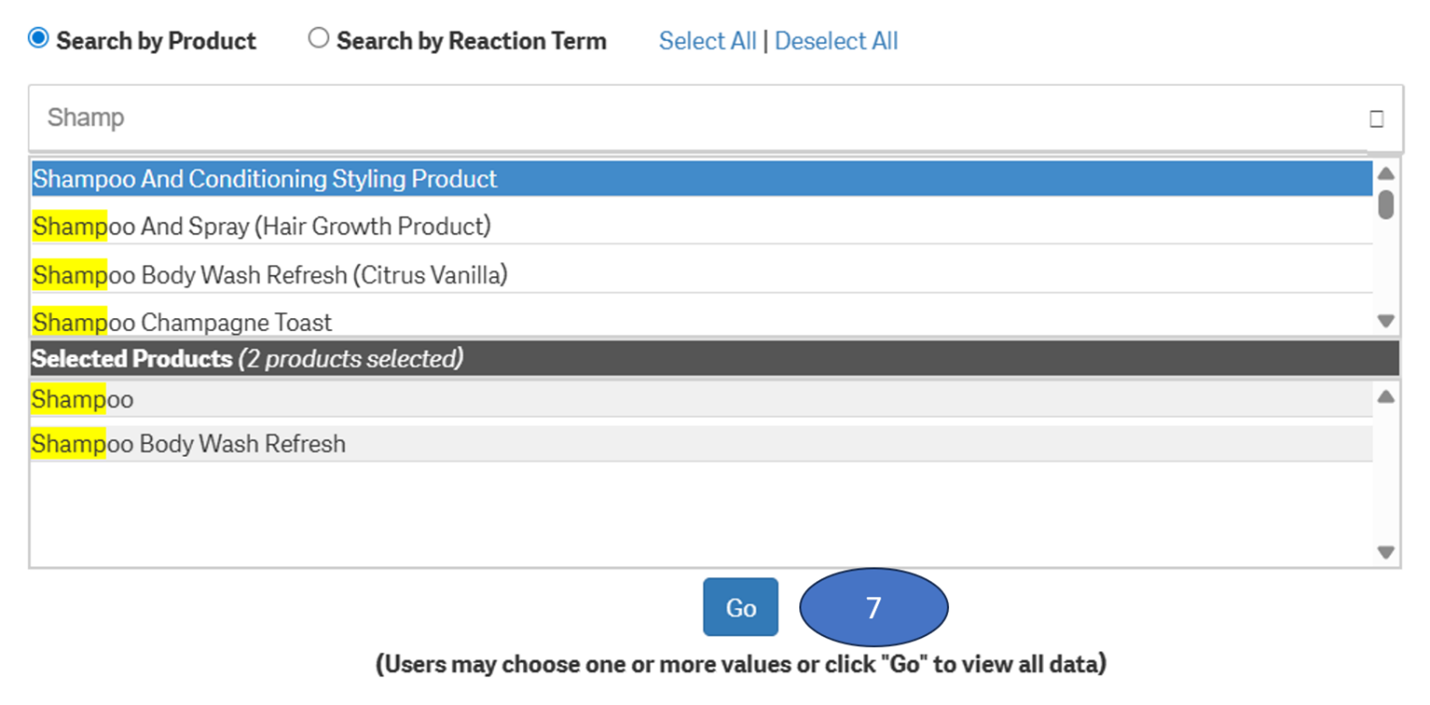
After accepting the disclaimer, click on the “Search Cosmetics” option and then:
1. Type a product value in the search bar.
2. Click or double-click on a desired value from the list of values to select it.
3. The selected product will be displayed under the list “Selected Products”.
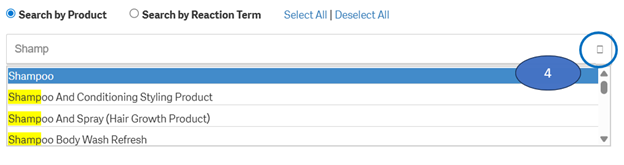
4. To clear the search text, click on the ‘X’ button in the right corner of the search bar.
5. If you want to add more products to your search, repeat the steps above for the products you are interested in.
6. If you want to deselect a product you have already selected, click or double-click on the product you want to deselect from the list “Selected Products”.
7. Once you have selected all the products you want to search for, click on the “Go” button. Alternatively, instead of selecting one or more products, users may click on "Go" button to view all cosmetic products
+ How can I search for cases for specific reactions (i.e., adverse events)?
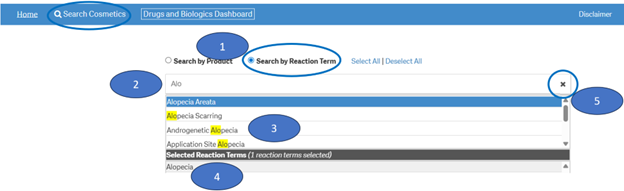
From the “Home” sheet, click on the “Search Cosmetics” option and then:
1. Select option “Search by Reaction Term”.
2. Type a reaction term value in the search bar.
3. Click or double-click on a desired value from the list of values to select it.
4. The selected reaction term will be displayed under the list “Selected Reaction Terms”.
5. To clear the search text, click on the ‘X’ button in the right corner of the search bar.
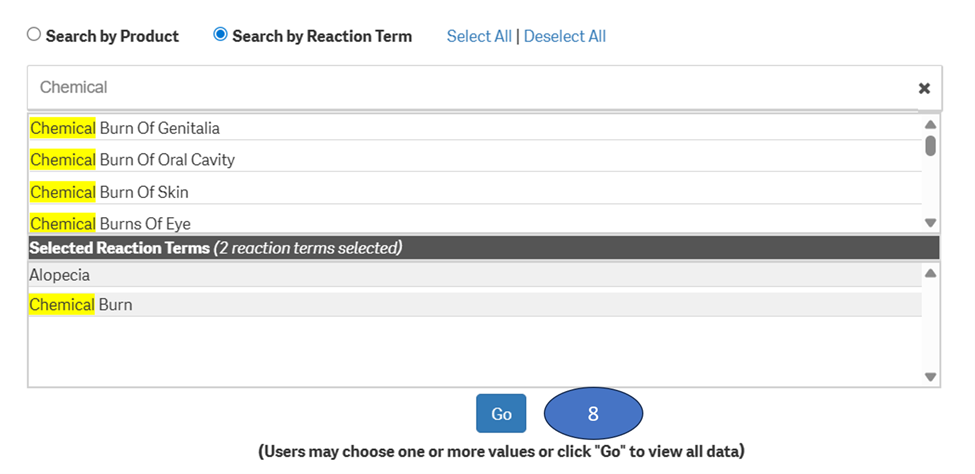
6. If you want to add more reactions to your search, repeat the steps above for the reactions you are interested in.
7. If you want to deselect a reaction you have already selected, click or double-click on the reaction you want to deselect from the list “Selected Reaction Terms”.
8. Once you have selected all the reactions you want to search for, click on the “Go” button. Alternatively, instead of selecting one or more reactions, users may click on the "Go" button to view all reactions.
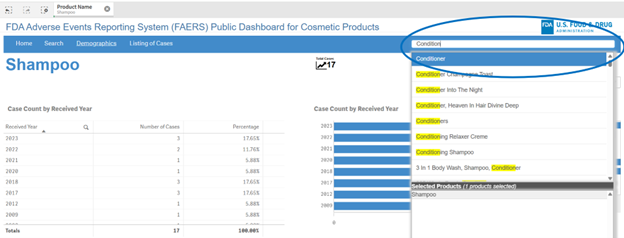
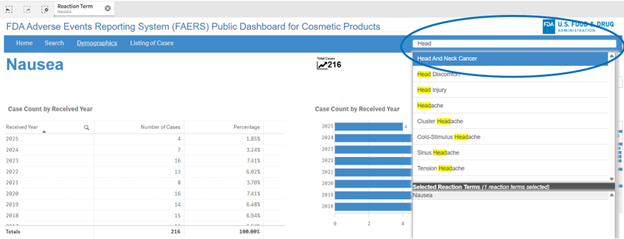
If you have already done a product or reaction search, the navigation bar will display a search box where you can type in and select new products or new adverse events for your search.
+ What can I search for using the search box in the navigation bar?
Depending on your initial search, you can use the search box in the navigation to search for either products or reaction terms (i.e., adverse event terms).
If your initial search in the “Search” sheet was based on product(s), you can only search for products in the search box of the navigation bar.
If your initial search in the “Search” sheet was based on reaction term(s), you can only search for reaction terms in the search box of the navigation bar.
+ Does the “Search” sheet allow selecting products and adverse events for the same search?
No, the search sheet allows you to select either products or adverse events for your search but not both. For example, if you select specific products using the “Search by Product” option and then choose the “Search by Reaction Term” option, the products you have selected will be removed from the search.
You may, however, filter for products and adverse events after your initial search in subsequent sheets.
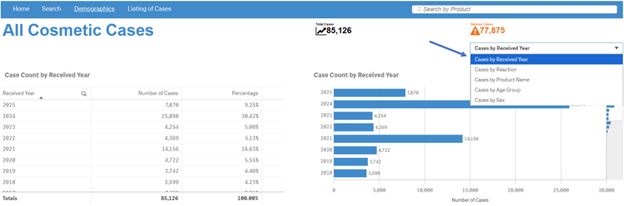
+ How can I view the distribution of report or case counts for different parameters?
To view distribution of counts for different parameters, click on the drop-down menu on the top right corner of a sheet and select the desired option.
+ Can I view charts and tables in full screen mode? How do I exit from full screen mode?
When you hover over any chart or table, a  symbol
is displayed on the right top corner of the chart or table. Clicking on this
icon will enable you to view the chart or table in full screen mode. To exit
the full screen mode, click the X on the top right corner of the chart or
table.
symbol
is displayed on the right top corner of the chart or table. Clicking on this
icon will enable you to view the chart or table in full screen mode. To exit
the full screen mode, click the X on the top right corner of the chart or
table.
+ Can I filter data in charts and tables?
Yes, the dashboard provides extensive filtering capabilities on both charts and tables.
Note: When you apply filters on a table or chart within the “Home” sheet, the filters will be applied only on charts and tables in this sheet. Conversely, when you apply filters on tables or charts in any other sheet, after searching for a product, the filters will be applied on all sheets except for the “Home” sheet.
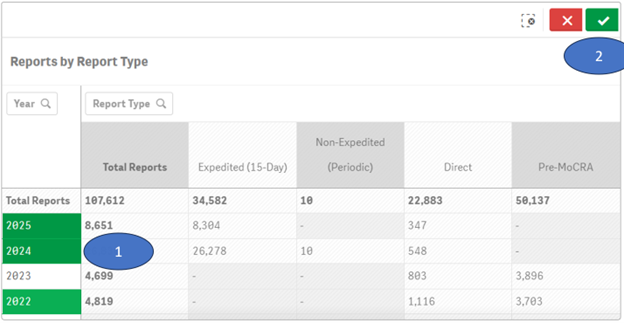
To filter data in a table, for example, filtering by year, there are two options:
Option 1:
1. Click on one or multiple columns or rows. You may also click and drag multiple rows or columns to select them for filtering data.
2. Click on the  icon
to confirm your selection.
icon
to confirm your selection.
Option 2:
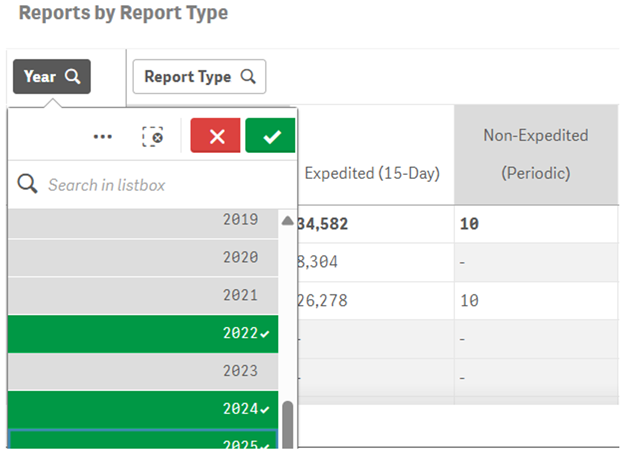
You may also use drop-downs (also known as filter panes) displayed on top of the rows or columns to choose your values for filtering. Please see screenshot below which shows how to select specific years for filtering.
To filter data in a chart, for example, filtering by year, there are two options:
Option 1:
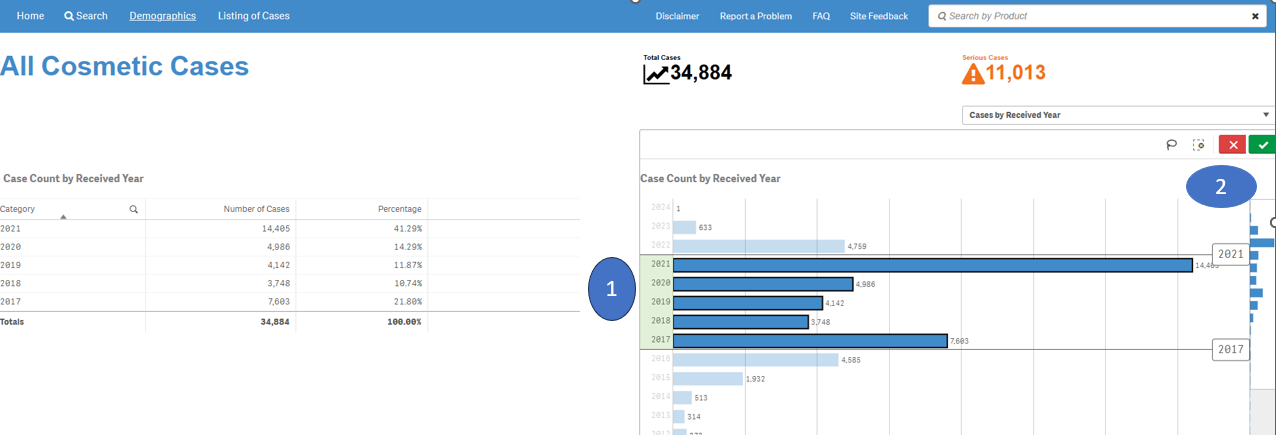
1. Click on one or multiple bars in the chart or items in the chart legend. You may also click and drag multiple bars to select them for filtering data.
2. Click on the button
to confirm your selection.
Option 2:
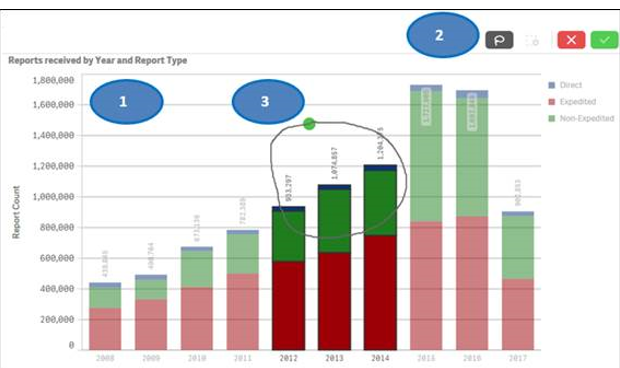
You may also use “lasso selection tool” to select multiple values from the chart. To use this feature:
1. Click anywhere on the chart.
2. Click on the
lasso  icon.
icon.
3. Click and drag to draw on the chart and select the bars you want to use for filtering.
You may also select values from a chart’s legend for filtering by clicking on the values.
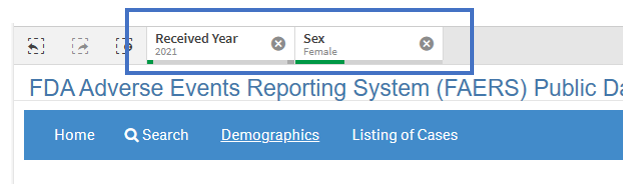
Note that the applied filters show up on the top selection bar.
+ How do I reset selected search criteria and remove all filters?
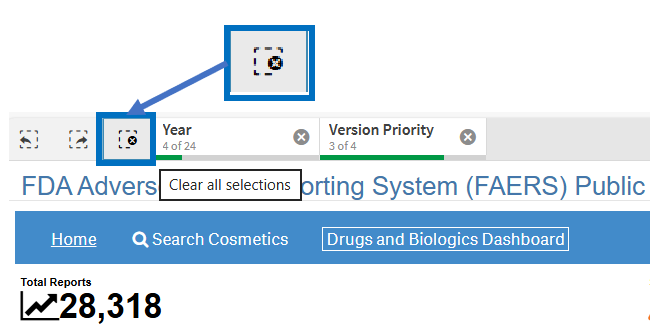
On the top left side of every sheet, you can see the icon shown below, with a dotted lined square with an “X” on it. Click the icon to clear any product you have selected for searching and all selected values used for filtering.
+ Can I extract or download dashboard data?
Yes, you may export or download dashboard data. Right-click on any table or chart in the dashboard and click on the “Export” option. You may choose from the following three options for exporting and downloading data:
1. Export as an image: This option will export a snapshot of the table or chart that you are viewing to an image file.
2. Export to PDF: This option will export a snapshot of the table or chart that you are viewing to a PDF file.
3. Export data: This option will export the underlying data of the table or chart that you are viewing to a Microsoft Excel (.xlsx) file. This option is explained in more detail in the final question of the FAQs below.
|
Action |
Color Code |
Description |
Screenshot |
|
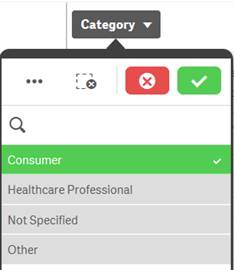
Selected |
Green, with a check mark as a selection indicator |
When you select one or more values in a filter pane and the values turn green, they are in the selected state. In the example screenshot, the value “Consumer” has been selected. |
|
|
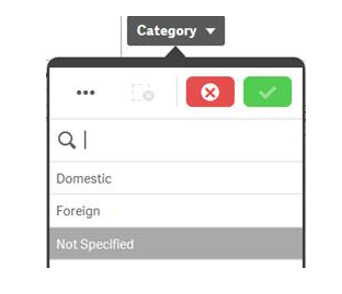
Possible |
White |
In the screenshot of the “Category” filter pane for “Reporter Region”, the values “Domestic” and “Foreign” are white (possible), because selecting these values will return data. You could refine your data set by selecting one or more of these possible values. |
|
|
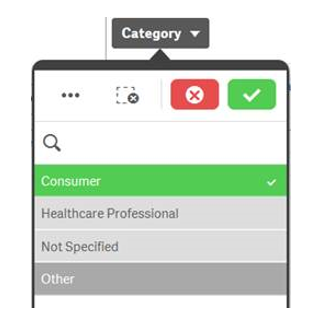
Alternative |
Light gray |
Selecting a light gray value will add to the previously selected value to broaden the filtering. |
|
|
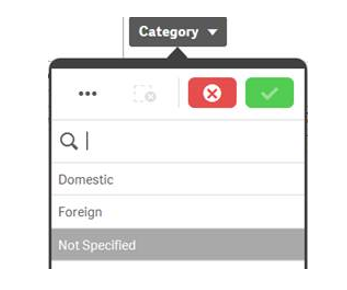
Excluded |
Dark gray |
Dark gray value indicates that there is no data for the specific value based on other filters that have already been applied to the data. Caution: Selecting a dark gray value: · May clear some or all other existing filters and apply that value as the new filter. · May cause the selected product to be removed. If that happens, restart your search using the Search for Product option in the navigation bar. |
|
+ Can I use the dashboard without accepting the disclaimer?
No. You will not be able to view any data in the dashboard without accepting the disclaimer.
Each case might have more than one adverse event term. Therefore, the sum of the case counts for individual adverse event may be same or more than the total count of distinct cases.
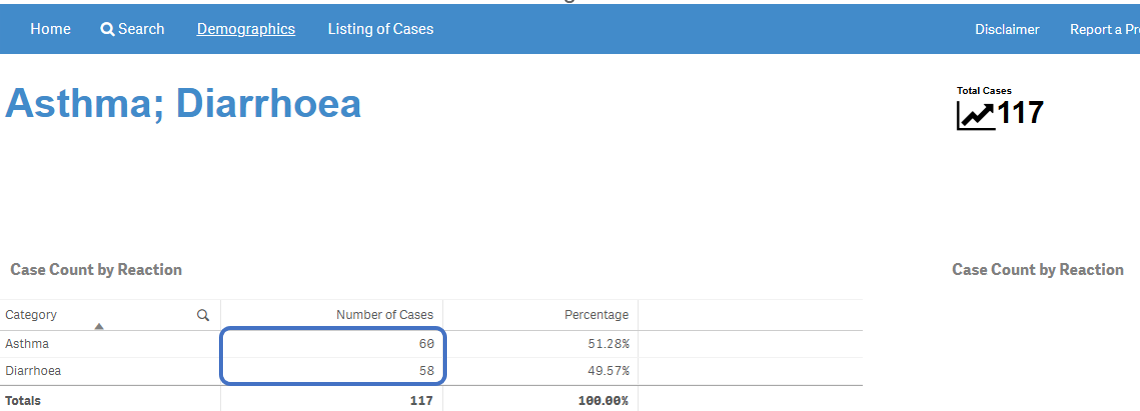
+ Why does the sum of individual outcome counts not add up to the overall count for the product?
Each case might have more than one outcome. Therefore, the sum of counts for individual outcomes may not match the total count of distinct cases.
+ How do I scroll in the “Listing of Cases” table?
The “Listing of Cases” table allows you to scroll vertically or horizontally using vertical and horizontal scroll bars respectively. To view the scroll bars, hover over the listing of cases table.
· Scroll up or down in the Listing of Cases table using the vertical scroll bar on the right side of the table. This will allow you to see all the rows in the table.
· Scroll to the left or right in the Listing of Cases table using the horizontal scroll bar on the bottom of the table. This will allow you to see all the columns in the table.
+ Can I rearrange columns in the “Listing of Cases” table?
Yes, you may rearrange columns by dragging and dropping column headers anywhere in the table. To move a particular column:
1. Click and hold on the column header.
2. Drag it next to a column you want to move it to and release the click.
Due to space constraints, some cells display only partial data. To view the entire content of any cell, simply hover over the cell with your mouse. The entire content of the cell appears in a pop-up.

+ How do I filter and sort data in the “Listing of Cases” table?
You can filter and sort data in the table using any column or
any value in a cell. To filter using a value in cell, simply click on the cell.
The table is refreshed with the filtered data. To filter using a column, click
on the  icon
next to the column header, and then select from the list of values for that
column.
icon
next to the column header, and then select from the list of values for that
column.
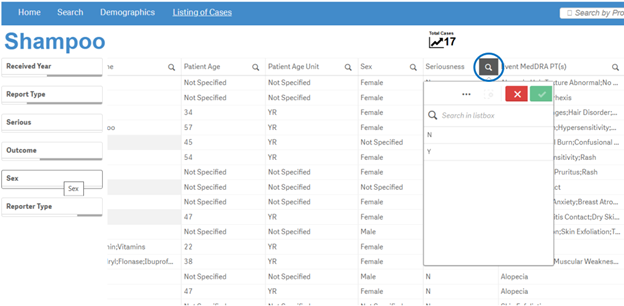
To sort data using a specific column, simply click on the column header. Click once on the column header to view data in ascending order. Click again on the column heading to sort the values in descending order.
+ How do I download data from the “Listing of Cases” table?
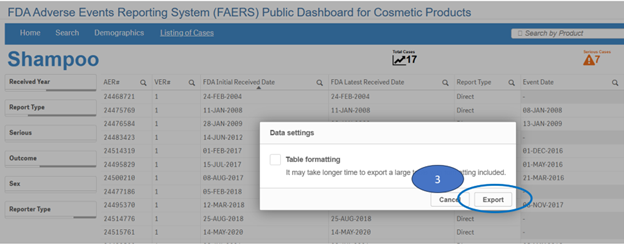
You can download data from the “Listing of Cases” table to a Microsoft Excel (.xlsx) file by using the “Export data” option.
Note: The “Listing of Cases” table provides a limited set of columns for case data. If you require a more comprehensive data set for download, you may download FAERS (FDA Adverse Events Reporting System) Quarterly Data files.
The data displayed in the FAERS Public Dashboard may not be identical to the data in the FAERS Quarterly Data files due to several reasons. Please refer to the Data Questions section for more information.
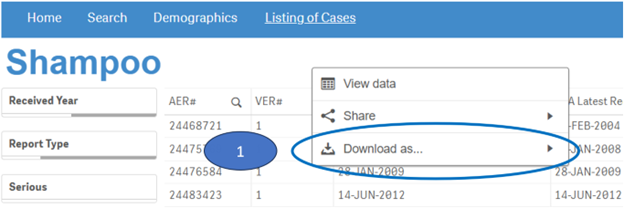
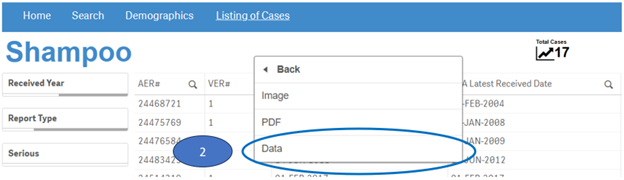
To download data from the “Listing of Cases” table:
1. Right-click anywhere on the “Listing of Cases” table and click on “Download as...”.
2. Select “Data” option.
3. Then click on “Export” to save the file to your machine.
U.S. Department of Health and Human Services